Minecraft on Android and iOS: The Complete 2026 Download and Installation Guide
Table of Contents
1. Introduction
2. What Is Minecraft and Why It’s Still Massive in 2026
3. Understanding the Different Versions of Minecraft
4. Is Minecraft Free? Clearing Up the Confusion
5. Why You Should Avoid Third-Party APK Sites
6. How to Download Minecraft on Android (Official Method)
7. How to Download Minecraft on iOS
8. System Requirements
9. Setting Up Your Account After Installation
10. Free Ways to Try Minecraft Before Buying
11. Common Installation Problems and Fixes
12. Tips for New Players
13. Keeping Minecraft Updated and Safe
14. Frequently Asked Questions
15. Final Thoughts
- Introduction
Few games have shaped modern gaming culture the way Minecraft has. More than fifteen years after its original release, it remains one of the most-played titles on the planet, spanning consoles, PCs, and mobile devices. If you’re looking to play Minecraft on your phone or tablet, it’s natural to search for the fastest way to get it installed. This guide walks through exactly how to do that safely, using official channels, while also explaining the different editions, pricing, requirements, and troubleshooting steps so you have everything you need in one place.
This article focuses on legitimate installation methods through the Google Play Store, Apple App Store, and Amazon Appstore. We deliberately steer clear of recommending unofficial APK downloads, and we’ll explain exactly why later on.
- What Is Minecraft and Why It’s Still Massive in 2026
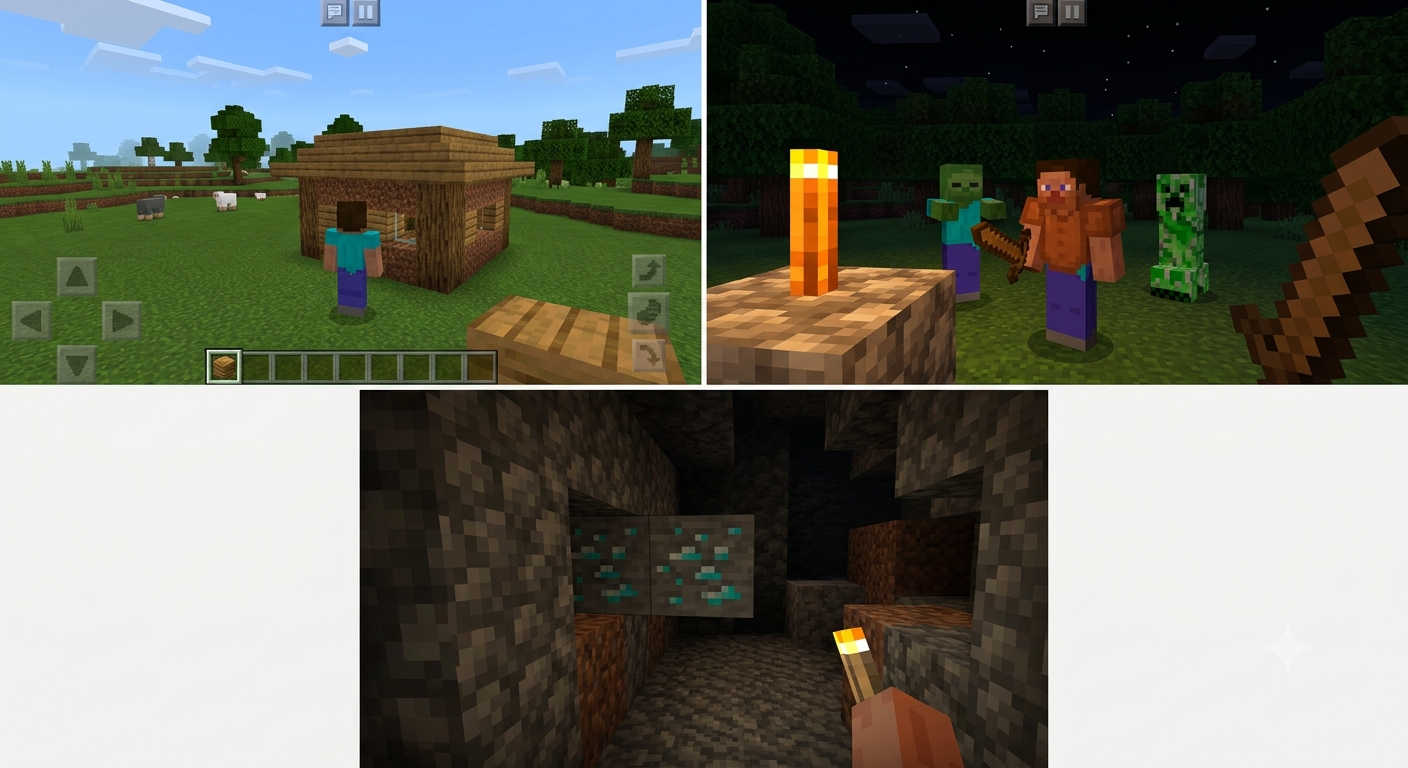
Minecraft is a sandbox survival game where players mine resources, craft tools and structures, and explore procedurally generated worlds made of blocks. Its open-ended nature means there’s no single “correct” way to play: some players build elaborate castles, others focus on survival against hostile mobs, and many simply enjoy the creative freedom of shaping entire landscapes from scratch.
Developed originally by Markus “Notch” Persson and later acquired by Mojang Studios (a subsidiary of Microsoft), Minecraft has sold hundreds of millions of copies across every major platform. Its longevity comes down to a few key factors: regular content updates, a massive modding and community-server ecosystem, cross-platform play, and a low barrier to entry that appeals to players of nearly any age.
The mobile version, officially called Minecraft for Android and iOS (built on what’s known as “Bedrock Edition”), brings nearly all of this functionality to a touchscreen, with controls adapted for mobile play and full support for online multiplayer with friends on other platforms.
- Understanding the Different Versions of Minecraft
Before downloading anything, it helps to know which version you’re actually looking for, since “Minecraft” isn’t a single product anymore.
Minecraft (Bedrock Edition) is the version available on Android, iOS, Windows, Xbox, PlayStation, and Nintendo Switch. It supports cross-platform multiplayer, meaning a phone player can join the same world as someone on a console or PC. This is almost certainly the version people mean when searching for a mobile download.
Minecraft: Java Edition is the original PC version, popular for its extensive modding community. It is not available on mobile devices and uses a separate purchase and account system.
Minecraft Trial is a limited, time-boxed version that lets new players test the game on mobile before committing to a purchase.
Minecraft Education is a specialized version built for classrooms, with tools for teachers and curriculum-based content, distributed separately from the consumer version.
Minecraft Classic is a free, browser-based version that replicates the very first public release of the game, with creative-mode building and no survival mechanics. It runs in a web browser, not as an app.
Knowing which one you want avoids a lot of confusion when browsing app stores or official websites.
- Is Minecraft Free? Clearing Up the Confusion
This is probably the most searched question related to mobile Minecraft, so it deserves a direct answer: the full mobile version of Minecraft is a paid app. It is not free, and there is no legitimate way to get the complete game at no cost.
That said, there are a few genuinely free ways to experience parts of Minecraft:
• The Minecraft Trial gives new accounts limited-time access to a restricted version of the game on supported devices.
• Minecraft Classic is entirely free in-browser but only offers a stripped-down creative mode.
• Occasional promotional bundles through device manufacturers or carriers sometimes include free or discounted Minecraft codes.
Any website offering a “free full download” of the current paid mobile version outside of these official channels is not distributing the game legitimately, and downloading from those sources carries real risks, which we’ll cover next.
- Why You Should Avoid Third-Party APK Sites
Searching for “Minecraft APK free download” often surfaces third-party file-hosting sites offering modified installer files outside of Google Play. While this might look like a shortcut, it comes with serious downsides worth understanding before you click anything.
Security risk. APK files from unofficial sources are not vetted by Google’s Play Protect scanning or Apple’s App Review process. Modified installers have historically been used to bundle malware, spyware, or adware alongside the game files. Because the game requests broad permissions during install, a compromised APK can quietly access your contacts, files, or even banking apps on the same device.
No updates or bug fixes. Official app store versions are updated automatically with new content, performance improvements, and security patches. Sideloaded APKs from unofficial sources are frequently outdated, missing the latest features, and sometimes incompatible with current multiplayer servers.
Account and save data risk. Many unofficial builds bypass or tamper with Microsoft’s authentication system, which can put your Microsoft account credentials at risk if you log in through a compromised app.
Legal and ethical issues. Minecraft is commercial software owned by Mojang Studios and Microsoft. Distributing or downloading paid software without authorization is a violation of copyright law in most jurisdictions, even when a site presents it as a “free version.”
For all these reasons, the only download path covered in this guide is the official one, through legitimate app stores.
- How to Download Minecraft on Android (Official Method) Installing Minecraft on an Android device is straightforward through the Google Play Store. Here’s the step-by-step process:
- Open the Google Play Store app on your Android phone or tablet.
- Tap the search bar and type “Minecraft.”
- Look for the official listing published by Mojang (the developer name should read “Mojang” or “Mojang Studios / Microsoft Corporation”). Verify the publisher name carefully, since clone apps sometimes use similar icons.
- Tap the listing to open the app’s product page, where you can see pricing, screenshots, age rating, and reviews.
- Tap Buy (or Install if you’ve previously purchased it on the same Google account).
- Confirm the purchase using your stored Google Play payment method, or redeem a Google Play gift card balance if you have one.
- Once the purchase is confirmed, the download will begin automatically. Progress shows as a percentage on the app icon or in your notification shade.
- After installation completes, tap Open to launch the game for the first time.
If you’ve purchased Minecraft before on a different Android device using the same Google account, you won’t be charged again. Simply search for it in the Play Store and you’ll see an Install button instead of a purchase price.
Amazon Fire tablet owners can follow a nearly identical process through the Amazon Appstore, searching for Minecraft and purchasing or installing it from there instead of Google Play.
- How to Download Minecraft on iOS For iPhone and iPad users, Minecraft is distributed exclusively through Apple’s App Store. Here’s how to get it:
- Open the App Store app on your iPhone or iPad.
- Tap the Search tab at the bottom and type “Minecraft.”
- Find the official listing, again published by Mojang, and confirm it matches the official icon (the grass-block “M” logo).
- Tap the price button (or the cloud download icon if you’ve already purchased it before).
- Authenticate the purchase using Face ID, Touch ID, or your Apple ID password.
- The app will begin downloading; you can track its progress on your home screen.
- Once finished, tap the icon to open the game and begin setup.
iOS purchases are tied to your Apple ID, so if you switch to a new iPhone or iPad later, you can simply search for Minecraft again and reinstall it for free using the same Apple ID.
- System Requirements
Minecraft runs on a wide range of mobile hardware, but performance varies depending on your device’s age and specifications.
Android requirements:
• Android 8.0 (Oreo) or newer in most current builds
• At least 2 GB of RAM, with 3 GB or more recommended for smoother performance
• A minimum of 1 GB of free storage space, though more is recommended once you start downloading texture packs or worlds
• A GPU compatible with OpenGL ES 3.1 or later for the best visual experience
iOS requirements:
• A device running a recent version of iOS (check the App Store listing for the exact current minimum, as this changes periodically with new releases)
• iPhone 8 or newer, or any reasonably current iPad, generally provides a smooth experience
• At least 1 GB of free storage, more if you plan to install add-ons or large custom worlds
Older or budget devices can usually still run the game, but may experience longer loading times, lower frame rates in large worlds, or rendering distance limitations. If performance feels sluggish, lowering the render distance in the game’s video settings often helps significantly.
- Setting Up Your Account After Installation
Once installed, Minecraft on mobile requires a Microsoft account to play, even in single-player mode. This consolidated login system (sometimes still referred to by its older name, Xbox Live) is what enables cross-platform multiplayer, cloud save syncing, and access to the Minecraft Marketplace.
On first launch, you’ll be prompted to sign in or create a Microsoft account if you don’t already have one. After signing in, you can:
• Choose or customize your in-game character skin
• Set up an Xbox Gamertag, which acts as your public username
• Adjust privacy and multiplayer settings, including who can send you friend requests or join your games
• Sync save data across devices, so a world you start on your phone can be continued on a tablet or console using the same account
It’s worth taking a few minutes during this setup to review privacy settings, especially if a younger player will be using the account, since Microsoft offers family settings that restrict multiplayer interactions and chat.
- Setting Up Your Account After Installation
Once installed, Minecraft on mobile requires a Microsoft account to play, even in single-player mode. This consolidated login system (sometimes still referred to by its older name, Xbox Live) is what enables cross-platform multiplayer, cloud save syncing, and access to the Minecraft Marketplace.
On first launch, you’ll be prompted to sign in or create a Microsoft account if you don’t already have one. After signing in, you can:
• Choose or customize your in-game character skin
• Set up an Xbox Gamertag, which acts as your public username
• Adjust privacy and multiplayer settings, including who can send you friend requests or join your games
• Sync save data across devices, so a world you start on your phone can be continued on a tablet or console using the same account
It’s worth taking a few minutes during this setup to review privacy settings, especially if a younger player will be using the account, since Microsoft offers family settings that restrict multiplayer interactions and chat. - Free Ways to Try Minecraft Before Buying
If you’re not ready to commit to a purchase, there are a couple of legitimate ways to get a feel for the game first.
Minecraft Trial offers a time-limited version of the full mobile game, letting you explore core mechanics like building, crafting, and survival before deciding whether to buy. Availability and trial length can vary by region and platform, so check the current listing in your app store for specifics.
Minecraft Classic, accessible through a web browser at Mojang’s official site, recreates the earliest version of the game in creative mode. There’s no survival, no mobs, and no crafting system, but it’s a fun way to experience the building fundamentals at zero cost and with no installation required.
Neither of these substitutes for the full game, but both are useful ways to sample Minecraft without spending anything or risking an unofficial download.
- Common Installation Problems and Fixes
Even with an official installation, a few issues come up regularly. Here are practical fixes for the most common ones.
“Insufficient storage” error. Free up space by clearing cached app data, deleting unused apps, or removing old photos and videos backed up elsewhere. Minecraft’s installer needs headroom beyond just the app size for temporary extraction files.
App won’t open after installing. Restart your device, then try launching again. If that fails, check the app store for a pending update, since occasionally a newly purchased app needs a follow-up patch before it runs correctly on certain devices.
Stuck on the loading screen. This is often related to a spotty internet connection during the account-verification step. Switch from mobile data to Wi-Fi (or vice versa) and try again.
Purchase not going through. Double-check your payment method is valid and that your region settings in the app store match your billing address. Regional mismatches are a frequent cause of failed transactions.
Game crashes in large worlds. Lower the render distance and graphics settings within Minecraft’s video options. Older devices in particular benefit from disabling fancy lighting effects.
Can’t find the official listing. If search results show suspicious clone apps instead of the real one, search using the developer name “Mojang” directly, or follow a link from Mojang’s official website to the correct store listing.- Tips for New Players
Once you’re up and running, a few early tips can smooth out the learning curve:
• Start in Creative mode first if you just want to explore building mechanics without worrying about hunger or hostile mobs.
• Switch to Survival mode once you’re comfortable, and prioritize building basic shelter before your first in-game night, when hostile creatures spawn.
• Keep a stock of torches early on; lighting prevents mobs from spawning near your base.
• Use the crafting table to unlock more advanced tools and items beyond what’s available in your personal inventory crafting grid.
• Explore the official Minecraft Marketplace within the app for community-made texture packs, skins, and adventure maps, many of which have free options alongside paid content.